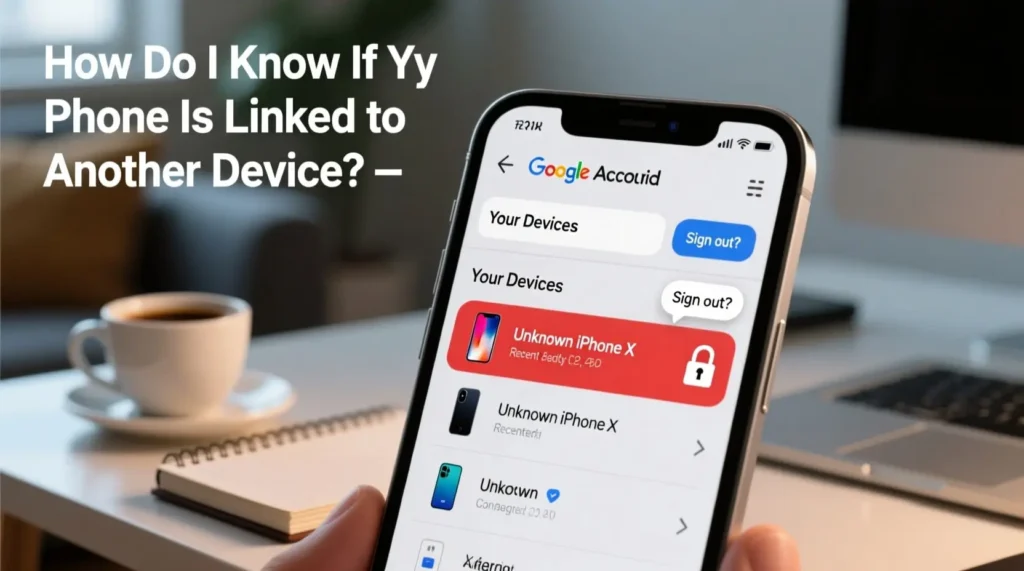

In today’s connected world, our smartphones hold everything from personal photos to banking information. This makes phone security more important than ever. If you’ve been wondering, “How do I know if my phone is linked to another device?” you’re not alone. Many people worry about unauthorized access to their phones. Someone might have connected to your device without your knowledge. This could be a family member, an ex-partner, or even a hacker. The good news is that checking for linked devices is straightforward. You just need to know where to look and what signs to watch for.
Why Your Phone Might Be Linked to Other Devices
There are several reasons why your phone could be connected to another device. You might have set up these connections yourself and forgotten about them. Bluetooth pairings with headphones, speakers, and car systems are common examples. Cloud account sharing is another frequent cause. When you sign into your Google or Apple account on multiple devices, they become linked automatically.
However, not all connections are intentional. Someone with access to your phone could have paired their device without telling you. They might be receiving your messages, tracking your location, or viewing your photos. This is why regular security checks are essential for everyone.
Signs That Your Phone May Be Compromised
Before diving into the technical checks, watch for these warning signs. Your battery draining faster than usual could indicate background activity. Unexplained data usage is another red flag. If your phone feels warm even when you’re not using it, something might be running in the background.
Strange notifications or messages you didn’t send are serious concerns. Apps appearing that you didn’t download should raise alarms. Your phone running slower than normal could also point to unauthorized access. Pay attention to these signs. They often appear before you discover an unwanted connection.
How Do I Know If My Phone Is Linked to Another Device on Android?
Checking for linked devices on Android is pretty simple. Start by opening your Settings app. Tap on your Google Account at the top of the screen. Select “Manage your Google Account” and then go to the Security tab. Look for the section called “Your devices” and tap “Manage all devices.”
Here you’ll see every device signed into your Google account. Check this list carefully. Look for devices you don’t recognize or no longer use. If you spot something unfamiliar, tap on it and select “Sign out” immediately. This removes that device’s access to your account.
Also check your Bluetooth connections. Go to Settings, then Connected Devices, then Bluetooth. Review the list of paired devices. Remove any you don’t recognize by tapping on them and selecting “Forget” or “Unpair.”
Checking Linked Devices on iPhone
iPhone users should start with their Apple ID settings. Open the Settings app and tap your name at the top. Scroll down to see all devices connected to your Apple ID. Each device will show its name, model, and serial number.
If you see a device you don’t recognize, tap on it for more details. You can check its location and when it was last active. To remove it, tap “Remove from Account” and confirm your choice. This immediately cuts off that device’s access.
For Bluetooth connections, go to Settings, then Bluetooth. You’ll see a list of all paired devices. Swipe left on any device you want to remove and tap “Forget This Device.”
Checking Third-Party App Connections
Many apps can create connections between devices. Check your messaging apps first. WhatsApp, Telegram, and Signal all allow web or desktop connections. In WhatsApp, go to Settings, then Linked Devices. You’ll see all active sessions. Log out of any you don’t recognize.
Social media apps also maintain device lists. Facebook, Instagram, and Twitter show active sessions in their security settings. Review these regularly. Remove any logins from locations or devices you don’t recognize.
Email apps are particularly important to check. Someone with access to your email can reset passwords for other accounts. Check your Gmail, Outlook, or other email security settings for active sessions.
Steps to Secure Your Phone After Removing Unknown Devices
Once you’ve removed suspicious connections, take steps to prevent future unauthorized access. Change your passwords immediately. Start with your main account (Google or Apple) and then update other important accounts.
Enable two-factor authentication everywhere possible. This adds an extra layer of security. Even if someone gets your password, they can’t access your account without the second verification step.
Consider updating your phone’s PIN or passcode. If someone had physical access to your device, they might know your current code. Choose something that’s hard to guess but easy for you to remember.
Review your app permissions as well. Remove access for apps you no longer use. Be cautious about which apps you allow to access your contacts, location, and photos.
Keep Your Phone Secure Going Forward
Regular security checks should become a habit. Set a reminder to review your linked devices monthly. This helps you catch unauthorized access early. Keep your phone’s software updated. Updates often include security patches that protect against new threats.
Understanding “How do I know if my phone is linked to another device?” is just the first step. Staying vigilant is equally important. Don’t share your passwords with others. Be careful about lending your phone to people you don’t fully trust. Use strong, unique passwords for each account. These simple practices will help keep your personal information safe and your phone secure from unwanted connections.